 Renke Holert
7 min read
Import Excel file into Planner Premium
For project managers who have been managing their projects with Microsoft Excel, Microsoft now offers a very simple...

You take part in many chats and tasks arise from them. These are often forgotten because it is not completely clear who exactly has to do what. But even if it is clear who is supposed to do something, it is easy to lose track in the multitude of discussions. This means that the person who is supposed to do the tasks overlooks the fact that they have to do something, and the project manager cannot check centrally whether everything has been completed. Creating a task manually for tracking is time-consuming.
TL;DR
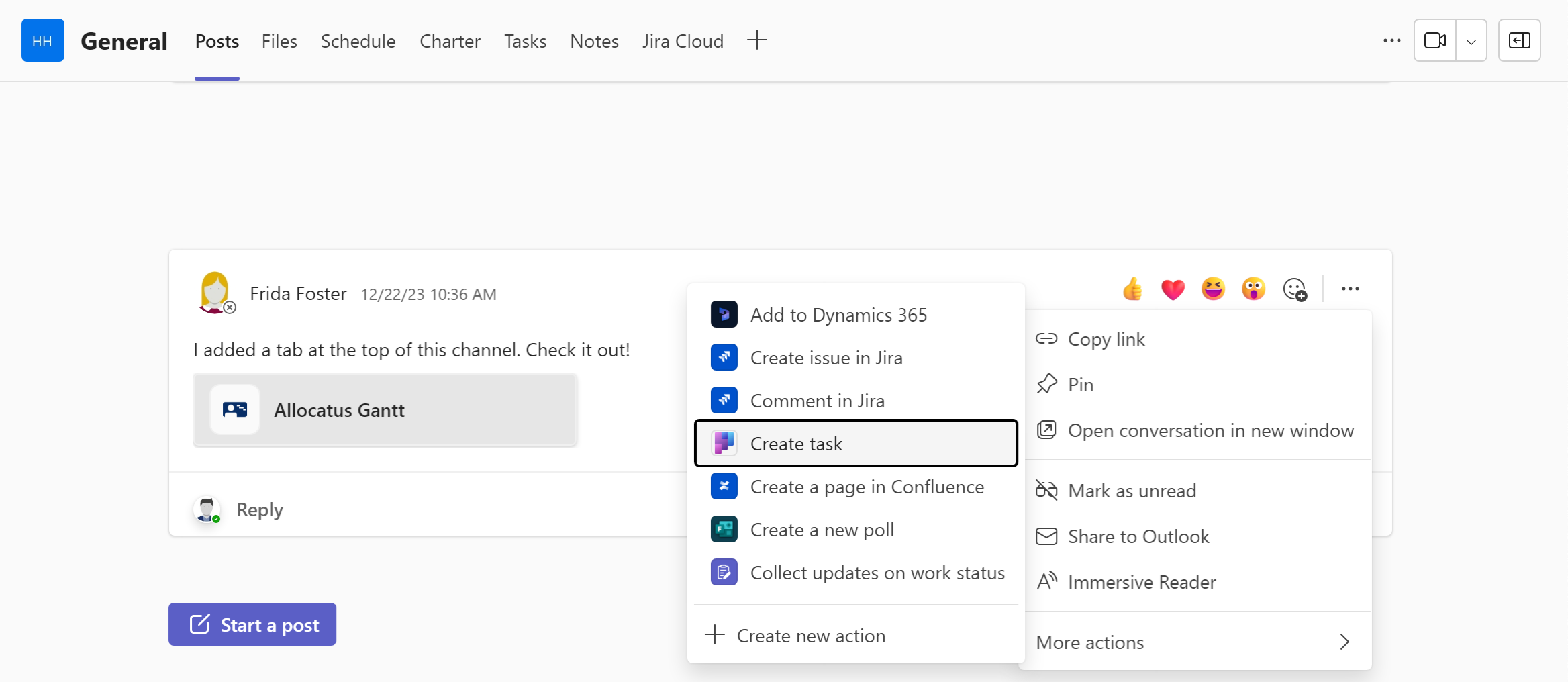
To create a task from a chat, hover over the chat post and click on the ellipsis, i.e. the three dots on the right-hand side.
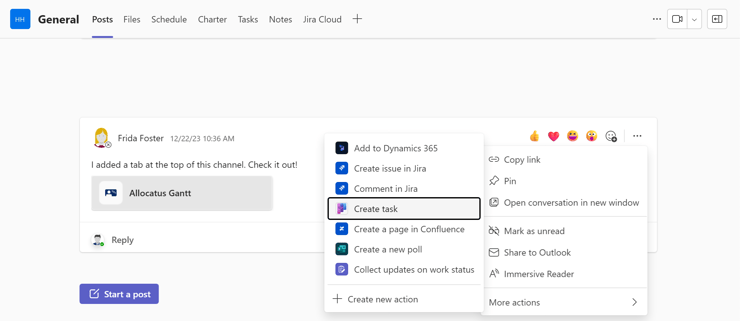
Then select Create Planner task under More actions. The screenshots still show the earlier label.
.png?width=740&height=551&name=blog%206%20(1).png)
In the following dialog, adjust the title if necessary and use Create in to decide where the task goes. Private Tasks adds it to your own list in the Planner app; you can set name, priority, due date and notes. If you choose a plan instead, you can also set progress and bucket, assign the task to a person, and click Add task.
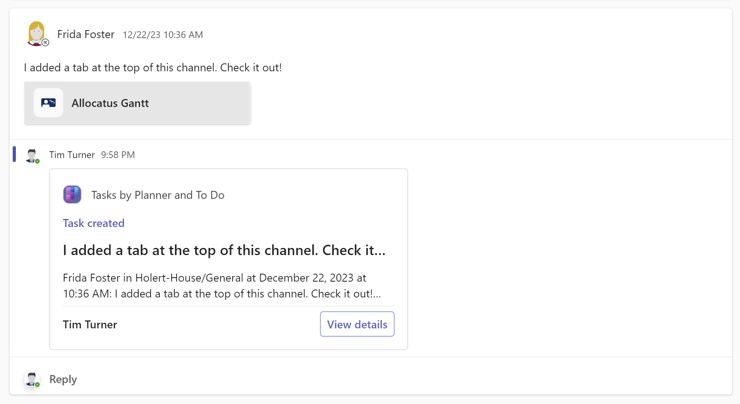
With a plan, you can also post a reply in the conversation. You will then see a new card in the chat history as a response to the discussion with the description and the Show details button. This will take you to the task.
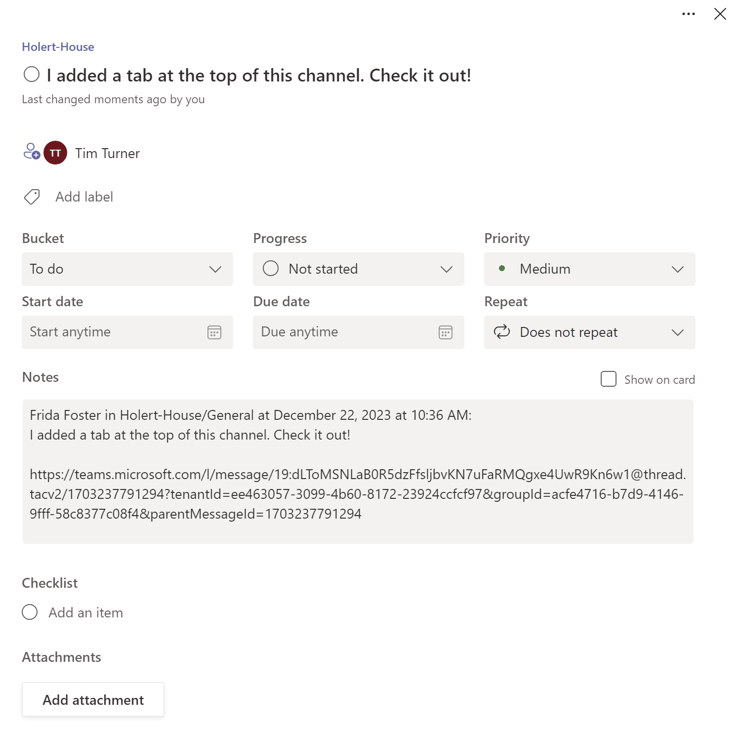
You can jump back to the discussion at any time using the hyperlink in the Notes field. However, this link currently only works in the Microsoft Teams web and desktop app and in the Microsoft To Do mobile app. It does not work in the Microsoft Teams and Microsoft Planner mobile apps.
Microsoft describes the procedure in Create a task from a Teams message. Private and shared channels did not support Planner for a long time; since September 2026, according to Microsoft, Planner can be added there as a tab as well.
If all tasks, open points, and action items are managed centrally in a project-specific list, everyone involved always has a clear overview of what is still pending. This significantly reduces the risk that tasks are overlooked or remain unfinished. At the same time, each person can view their individual tasks directly in Microsoft To Do.
How Planner Basic is set up in Teams, where its limits are and how it works with Outlook and To Do is covered in our overview article Microsoft Planner – tasks in Microsoft Teams.
Where do I find the action to create a task?
Hover over the message, select the three dots, then More actions and Create Planner task.
Can I create the task just for myself?
Yes. Under Create in, select Private Tasks. The task then appears only in your own list in the Planner app in Teams.
Do the other chat participants see that a task was created?
Only if you create the task in a plan and post a reply in the conversation. A card with a link to the task then appears in the chat.
Where does the assignee see the task?
In the Planner app in Teams under their own tasks, and in Microsoft To Do.
The message action moves a task out of the chat into a plan. It does not answer which plan collects the tasks of a project, who follows them up, and how open items from many teams, plans and Microsoft Project end up in one project and portfolio view. Without these rules, many small lists quickly appear that nobody keeps track of.
Holert implements project, programme and portfolio management on Microsoft and Atlassian — for over 25 years, methodically aligned with PMI and SAFe, technically on Microsoft Planner, Project, Teams and Dataverse as well as Altus PPM, Projectum xPM and Jira. With our product Allocatus you can also synchronize tasks from Microsoft Project with Microsoft To Do, so every team member sees all tasks in one place. To get started there is the fixed-price package Smart Start for implementing project management software. Companies such as Rohde & Schwarz, KUKA and Amer Sports rely on us — see further project and portfolio management customer references.