3 min read

Import Excel file into Planner Premium

Featured Image

For project managers who have been managing their projects with Microsoft Excel, Microsoft now offers a very simple project management solution called Microsoft Planner Premium. If you want to import the tasks from Microsoft Excel into Microsoft Planner Premium, there are three steps to follow: 

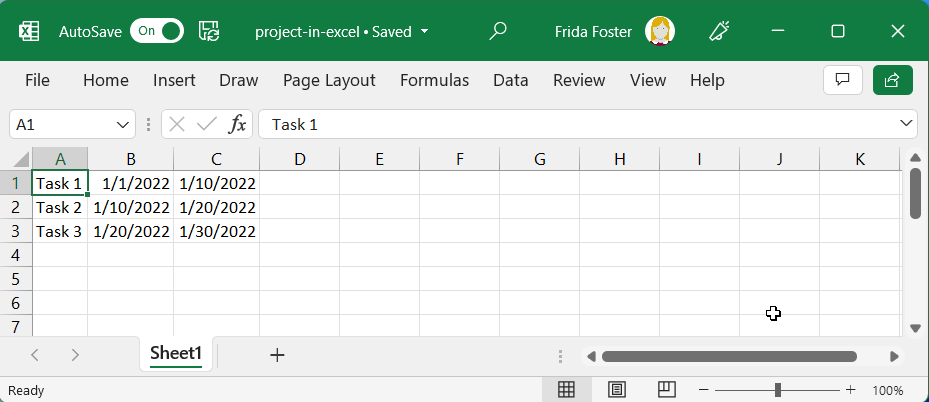
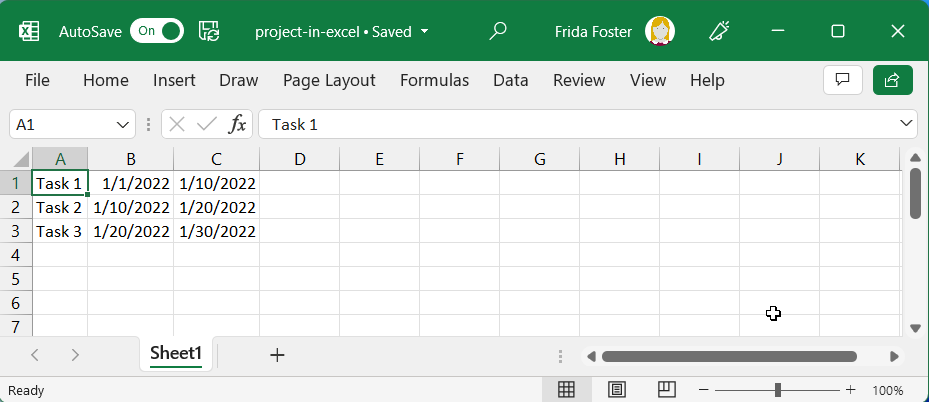
Create a project plan in Microsoft Excel 

import-project-tasks-from-microsoft-excel-to-microsoft-project-step-1

Save project plan in Microsoft Excel. 

Import project plan from Microsoft Excel file into Microsoft Project desktop app 

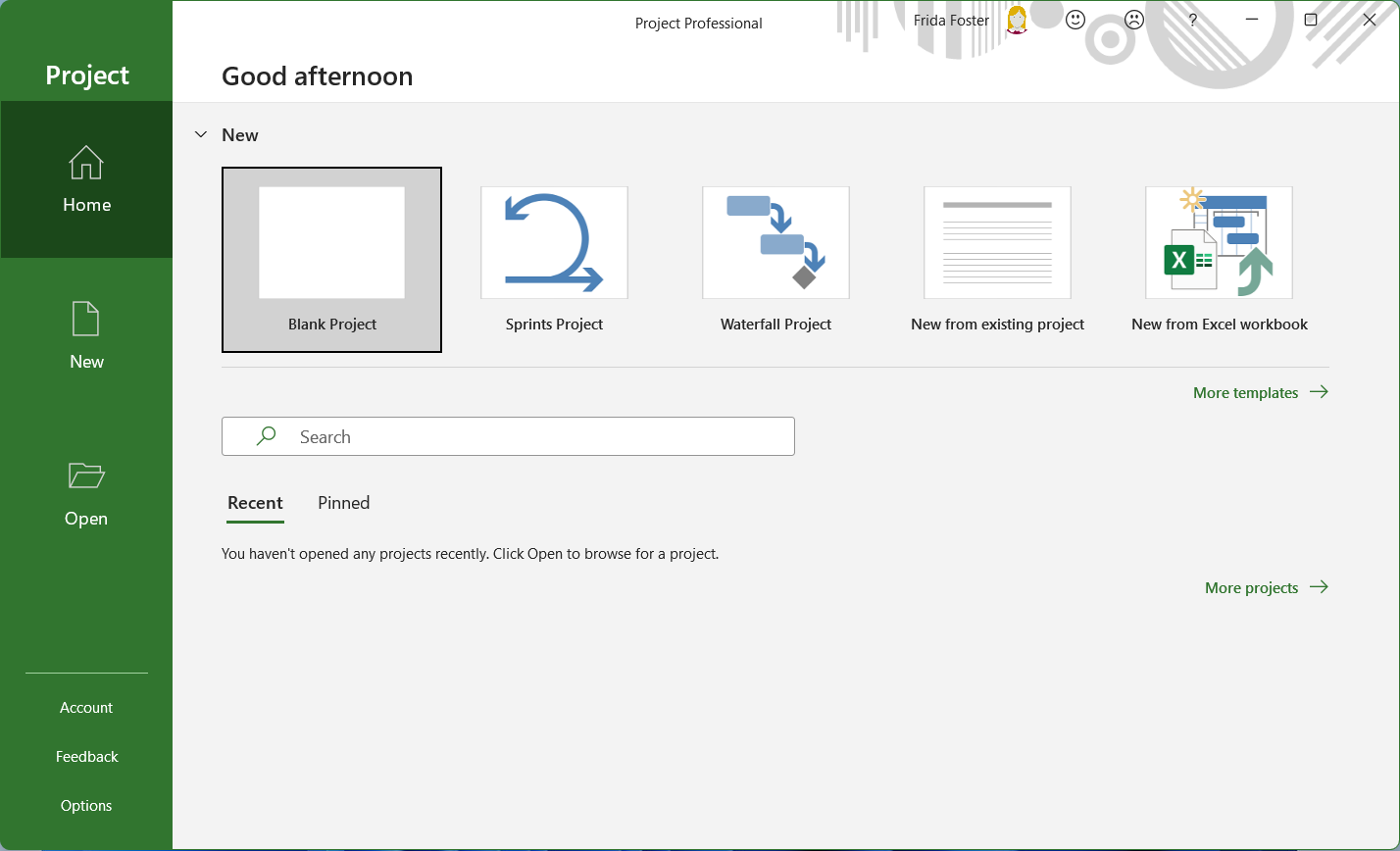
import-project-tasks-from-microsoft-excel-to-microsoft-project-step-2

Open the Microsoft Project desktop app and select New from Excel workbook. 

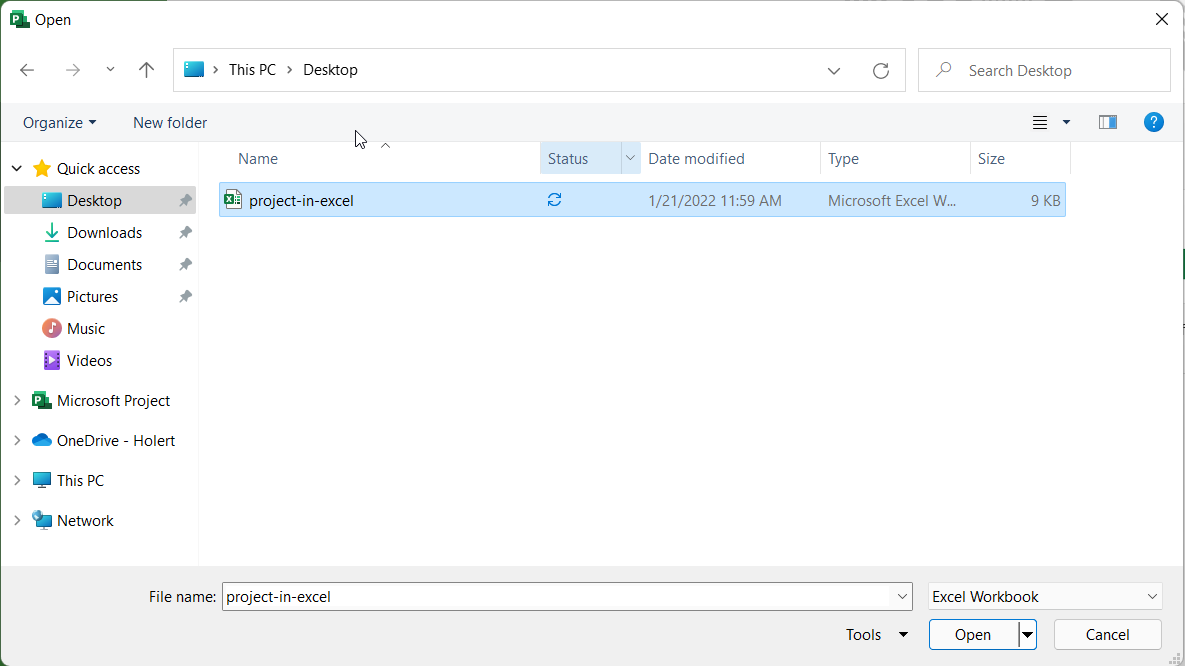
import-project-tasks-from-microsoft-excel-to-microsoft-project-step-3

Select and open the Excel project file. 

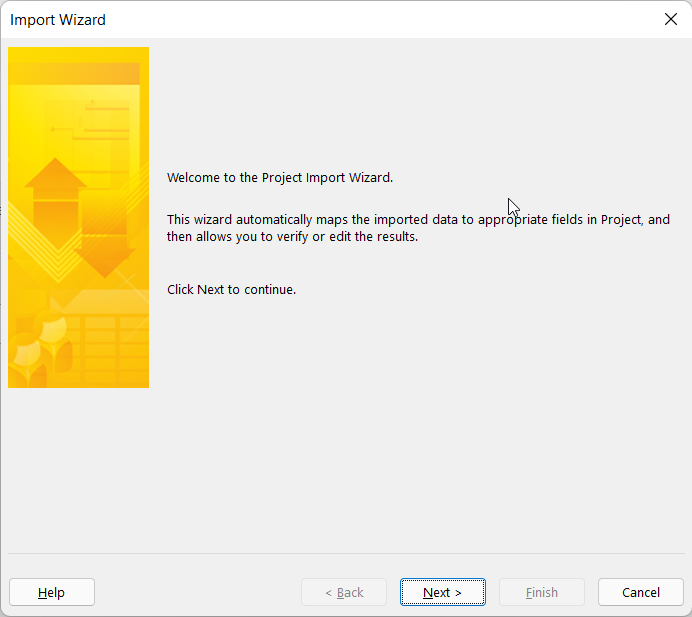
import-project-tasks-from-microsoft-excel-to-microsoft-project-step-4

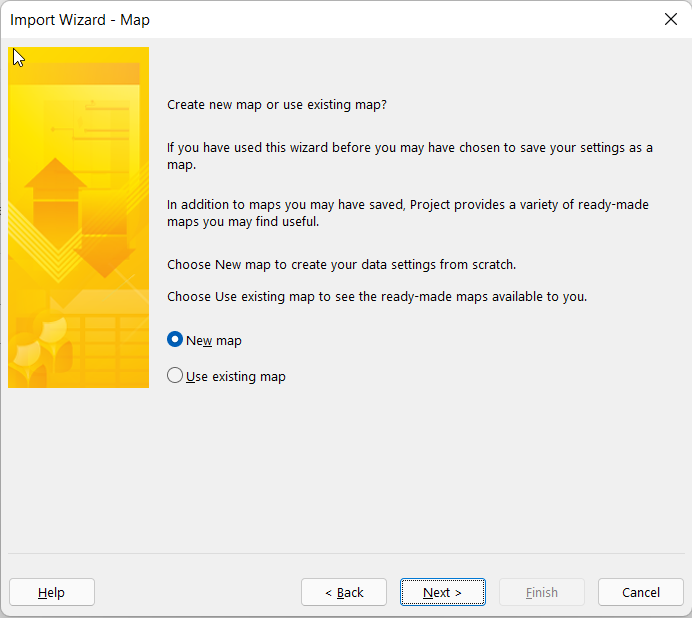
Click next in the Microsoft Project import wizard. 

import-project-tasks-from-microsoft-excel-to-microsoft-project-step-5

Click to continue.

import-project-tasks-from-microsoft-excel-to-microsoft-project-step-6

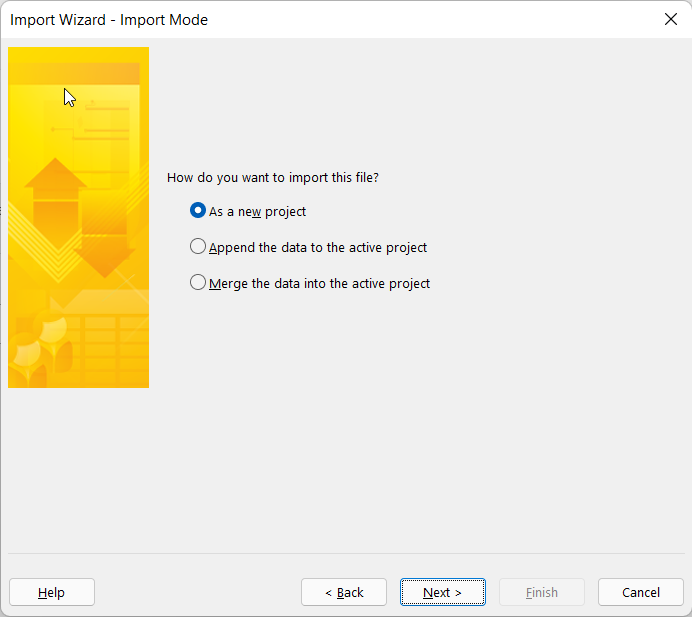
Click to continue.

import-project-tasks-from-microsoft-excel-to-microsoft-project-step-7

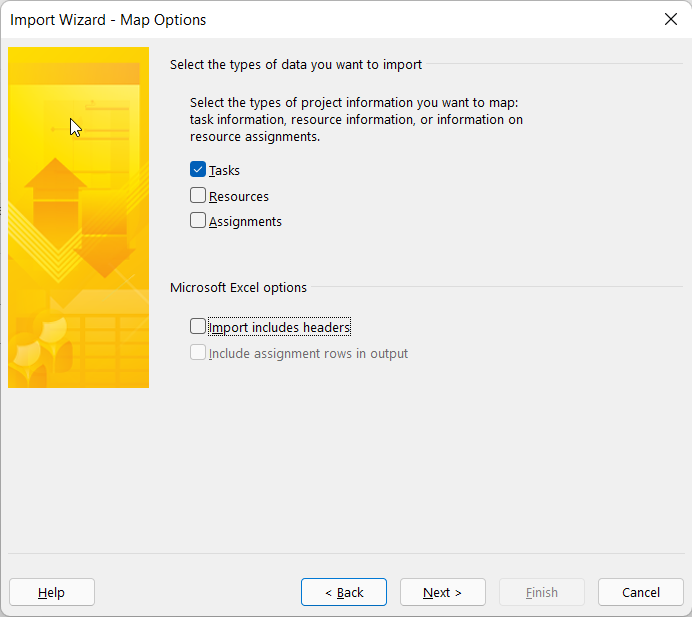
Select the task and deactivate the import of column headers in the example and click next. 

import-project-tasks-from-microsoft-excel-to-microsoft-project-step-8

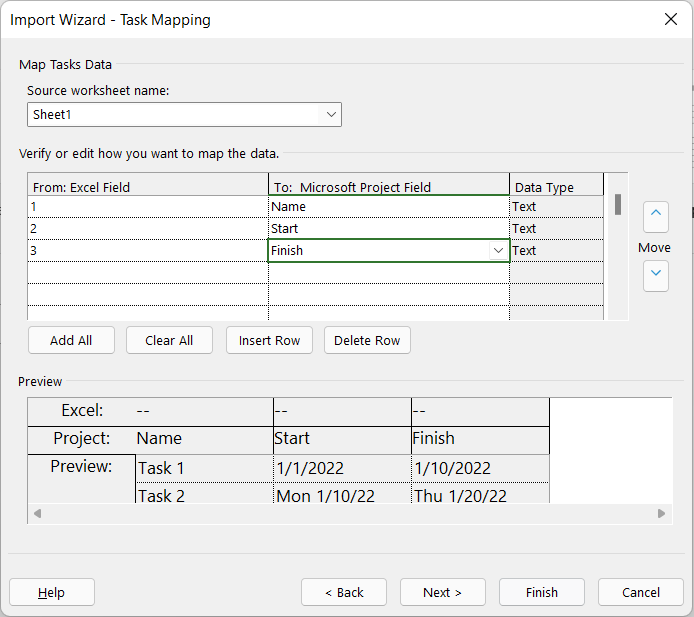
Assign the columns from Excel to the columns in Project. In the example, click Name, Start and End and continue.

import-project-tasks-from-microsoft-excel-to-microsoft-project-step-9

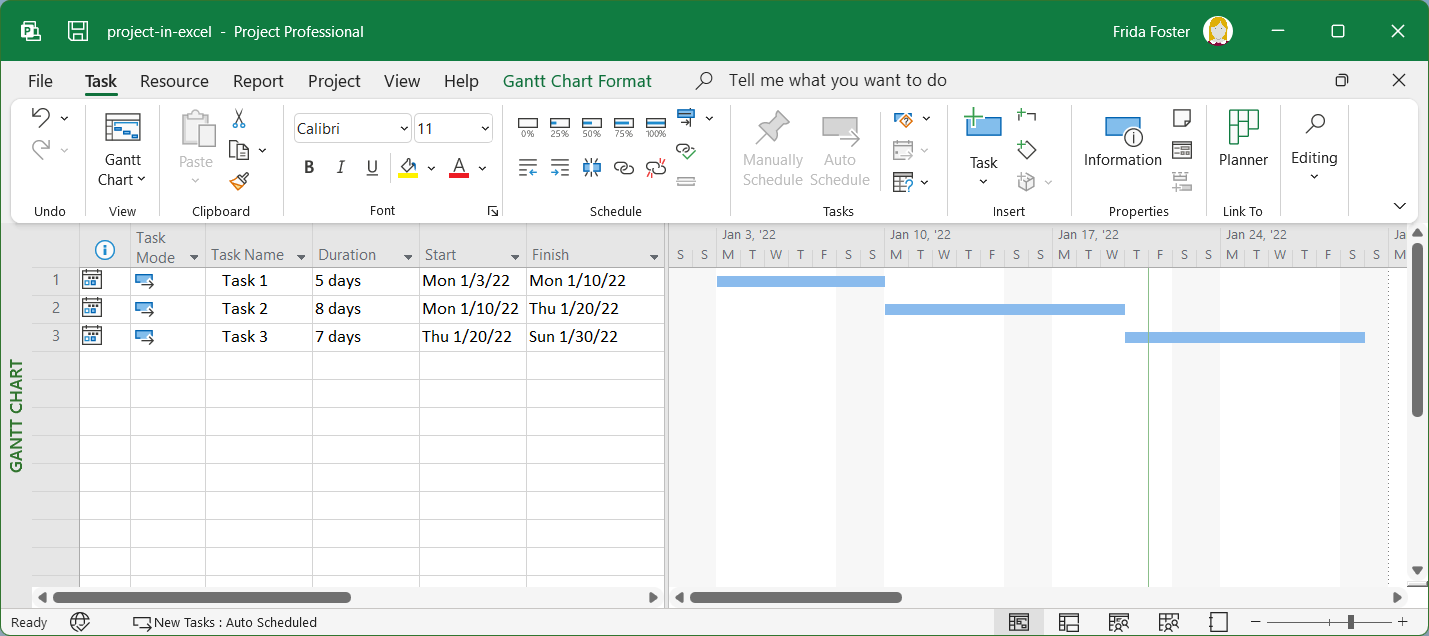
You will then see the Excel file in MS Project. 

import-project-tasks-from-microsoft-excel-to-microsoft-project-step-10

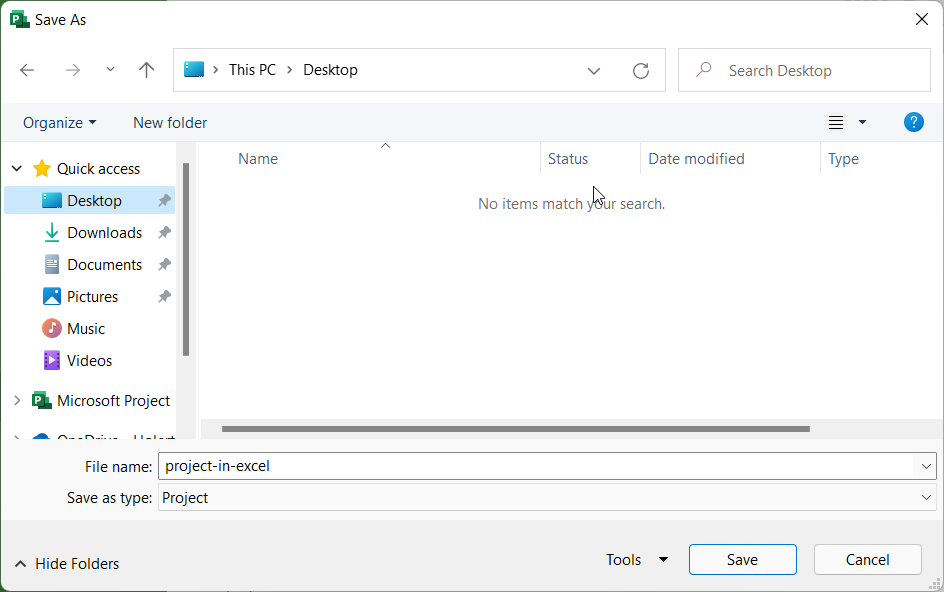
Save the task list as an MS Project file.

Import project plan from Microsoft Project Desktop App into Microsoft Project for the Web

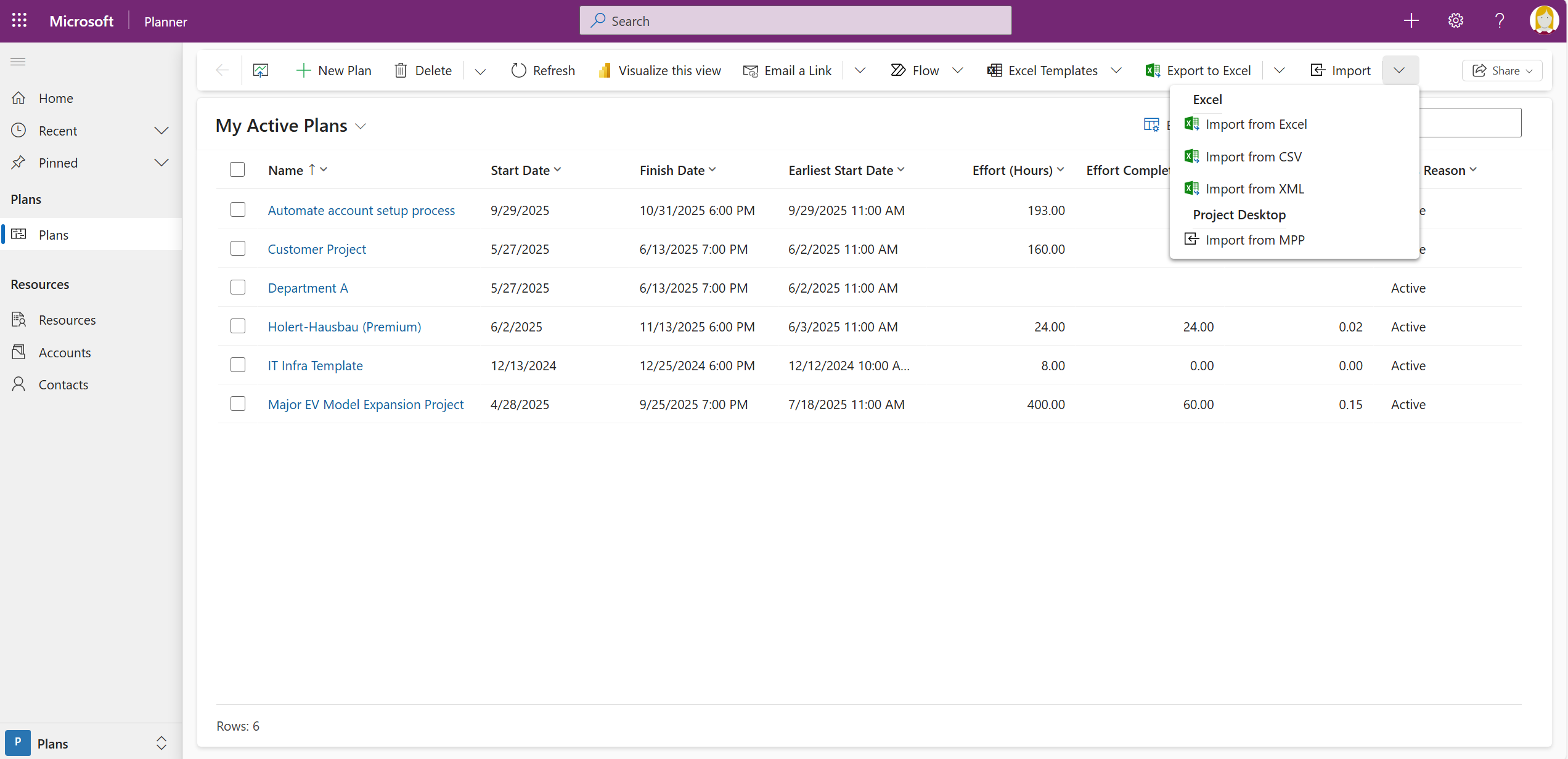
Go to Power Apps, select the Planner App

planner-premium-import-from-ms-project-mpp

Select Import from mpp.

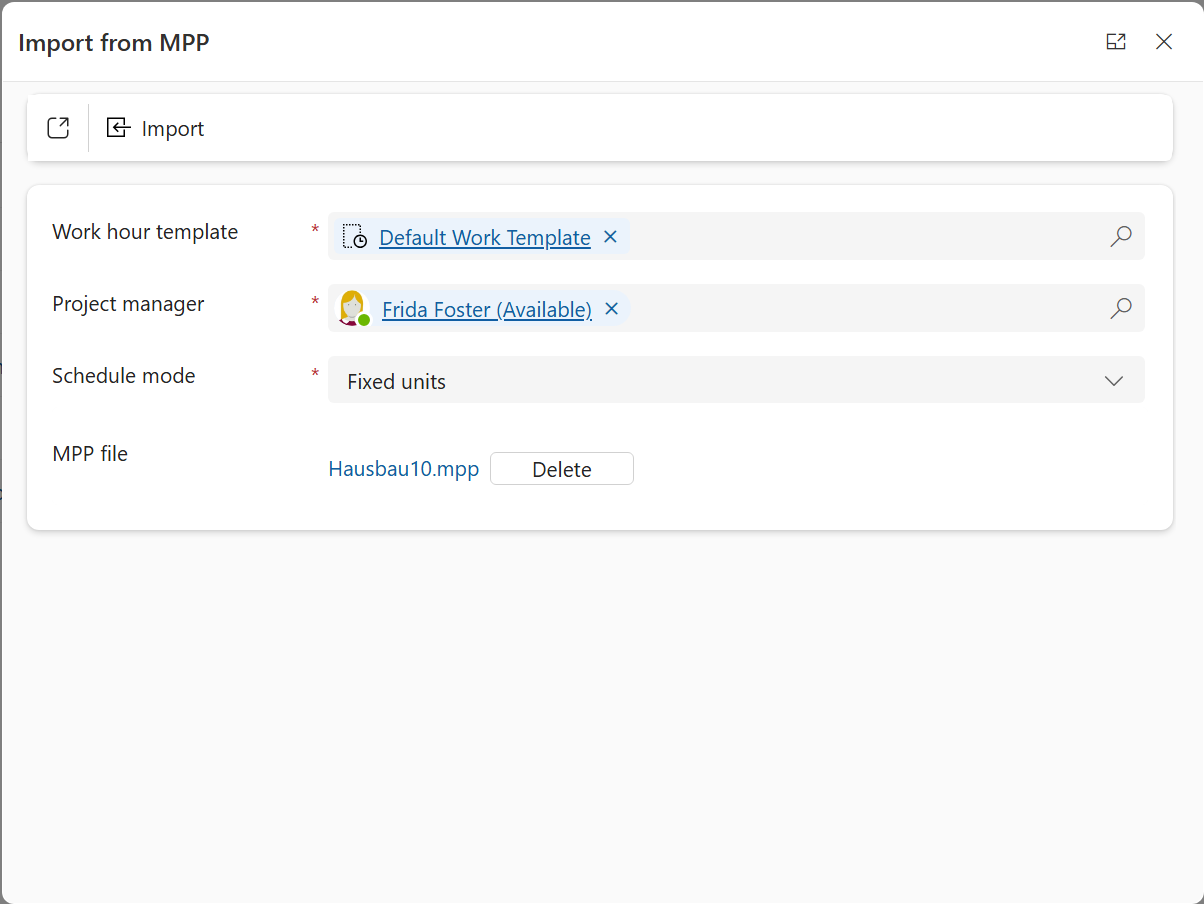
Select the MS Project mpp file to import into Planner Premium

Select the previously saved project file and click Import

planner-premium-import-from-ms-project-mpp-2

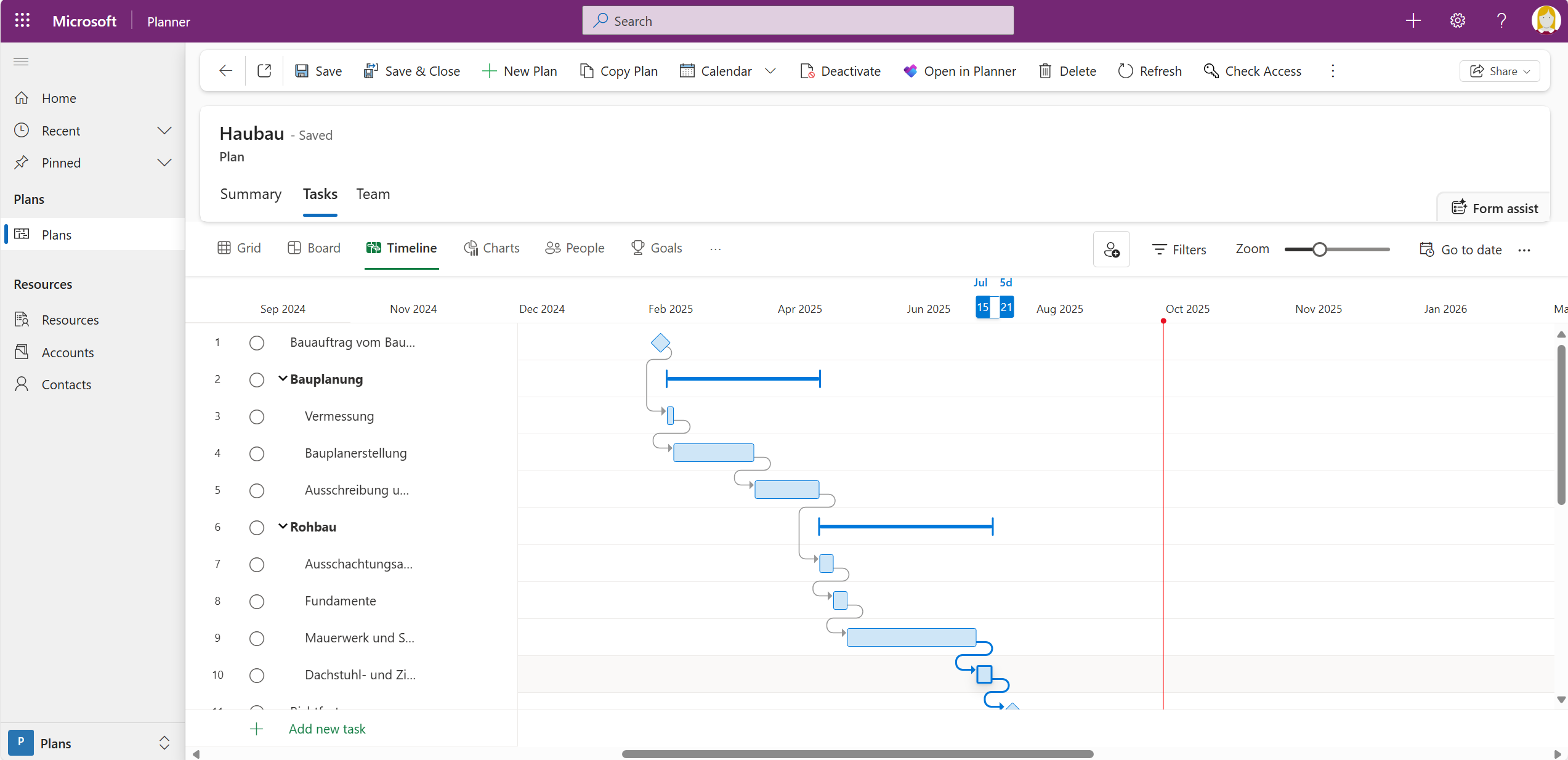
You will then see all the data from Microsoft Excel in Planner Premium.


Do you want to get a full overview about all your Planner Premiums Plans? Then sync all your Planner Basic and Planner Premium Plans with Altus and add missing features like Baselines, Resource Management, Portfolio Management.

2 min read

Siemens: planning the mobile workforce for rail track maintenance

About Siemens Siemens Mobility, a division of Siemens AG, is a pioneering global player in the realm of transportation...

2 min read

Calendar management with Microsoft Outlook Integration

Challenges with Microsoft Project At adidas all product development tasks are centrally planned with Microsoft Project...

2 min read

Rohde & Schwarz efficient absence management

About Rohde & Schwarz Rohde & Schwarz is an independent corporation that develops, manufactures, and markets a broad...